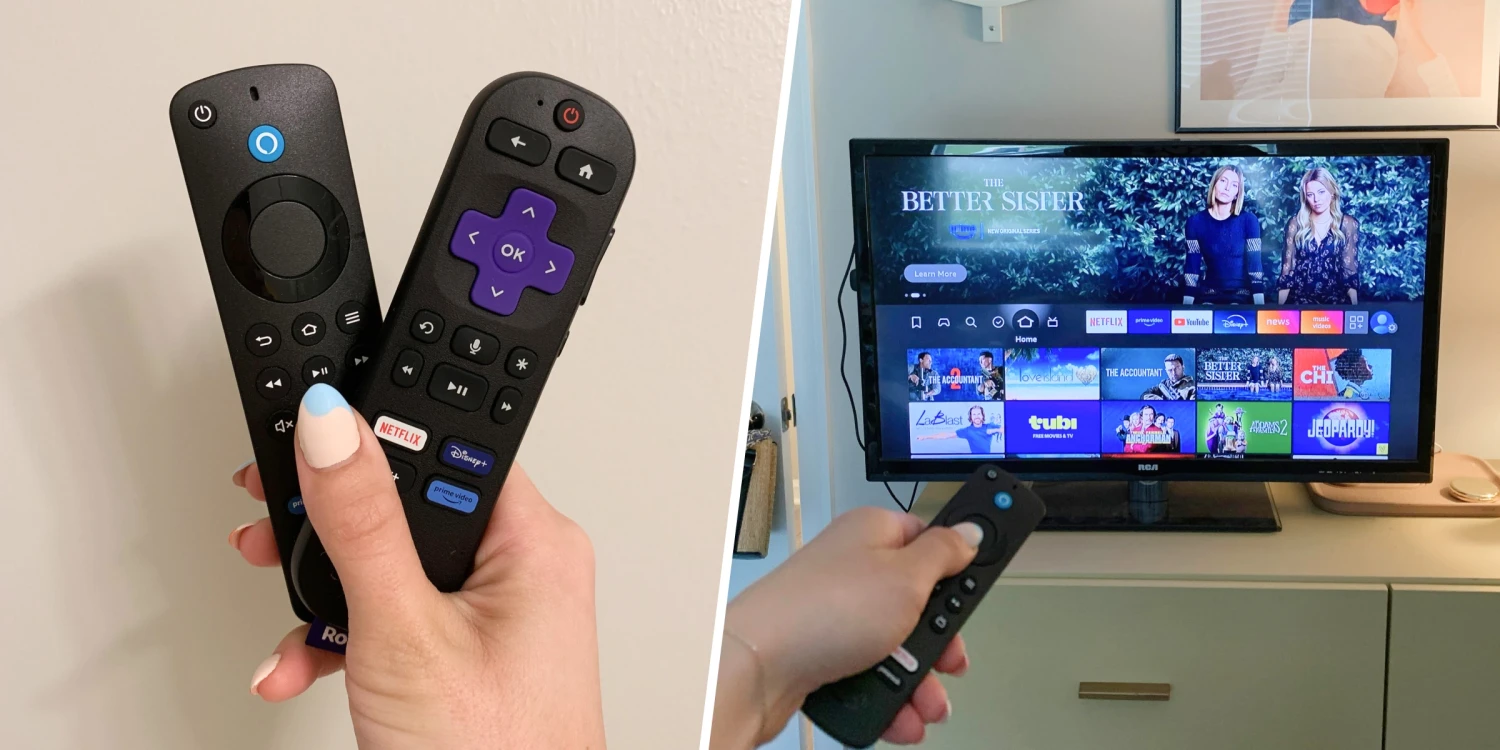
Amazon Firestick is the most popular IPTV streaming device in the world — and for good reason. It is compact, affordable, plugs directly into any HDMI port, and supports 4K HDR streaming. Installing an IPTV app on Firestick takes less than five minutes. Here is the complete step-by-step guide for 2026.
What You Need Before Starting
Before you begin: (1) your Amazon Firestick connected to your TV and internet, (2) your Movinnoo IPTV credentials (server URL, username, password) sent to you after subscribing, and (3) about five minutes of your time. That is everything.
Step 1: Enable Apps from Unknown Sources
Go to Settings → My Fire TV → Developer Options. Toggle "Apps from Unknown Sources" to ON. This allows Firestick to install apps that are not in the Amazon App Store — which is required for third-party IPTV players.
Step 2: Install the Downloader App
Return to the Firestick home screen and open the Amazon App Store. Search for "Downloader" and install it. This free utility lets you download APK files directly onto your Firestick using a URL.
Step 3: Download Your IPTV Player APK
Open the Downloader app and enter the download URL for your preferred IPTV player (Hotplayer or IPTV Smarters Pro — provided in your Movinnoo welcome message). The APK file will download in about 30 seconds on a standard connection.
Step 4: Install the APK
Once the download finishes, tap "Install" when prompted. Firestick will install the app automatically. When installation is complete, tap "Open" to launch it immediately, or tap "Done" to find it in your app library later.
Step 5: Enter Your Movinnoo Credentials
Inside the IPTV app, select "Add Playlist" or "Login with Xtream Codes API." Enter the server URL, username, and password exactly as provided in your Movinnoo welcome message. Tap "Add User" or "Connect."
Step 6: Enjoy 20,000+ Channels on Your TV
Your full channel list will load within seconds. Browse Live TV, Movies, Series, and Sports using your Firestick remote. The experience is indistinguishable from regular TV — except with vastly more channels, better quality, and a fraction of the cost.
Troubleshooting Common Issues
If channels buffer: check that your internet speed is above 25 Mbps for 4K streams, or restart your router. If the app does not install: make sure "Apps from Unknown Sources" is still enabled in Developer Options. For any issues, Movinnoo support is available 24/7 on WhatsApp and will guide you through setup in real time.